
Using Nimivo


Nimivo is simple and intuitive to use. When Nimivo loads, it will scan for new media that may have been added to your library. For movies, this scan will only happen once since the data about the movie is unlikely to change. It will also scan TV Shows that are ongoing for any new seasons or episodes that have been added to your library.
Below the title on the left side are Movies and Series tabs. The selected tab will have a red line beneath it. The default tab is Movies.
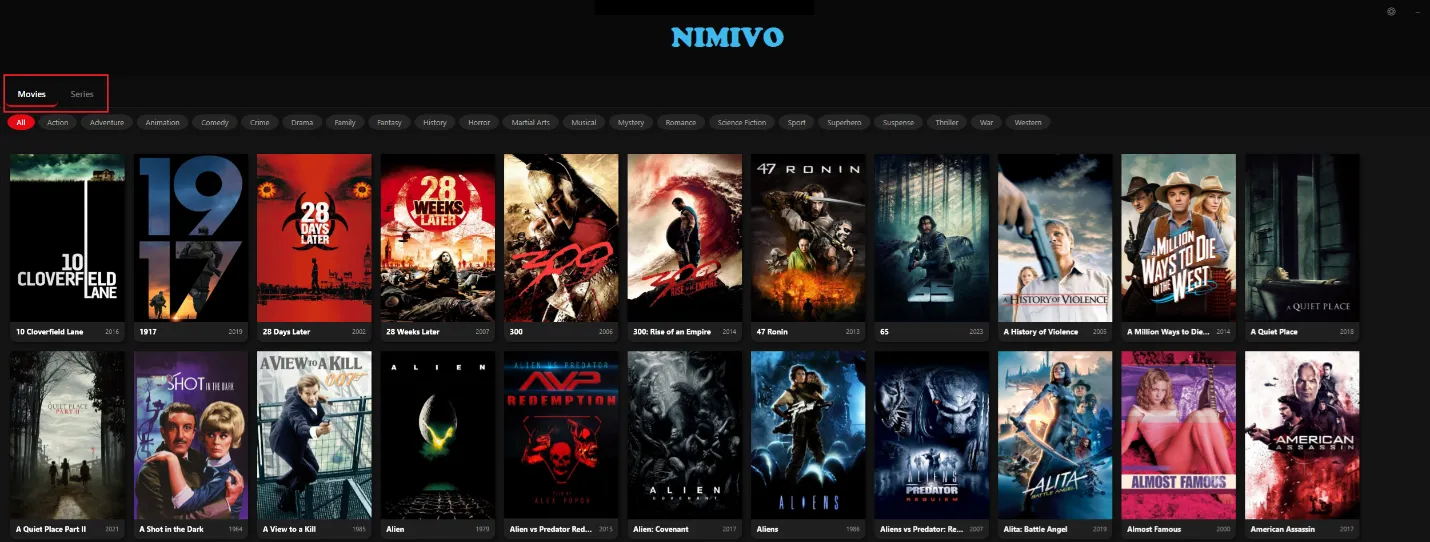
The list of unique genres will display below the Movies and Series tabs.

Opening Settings
The Settings screen displays on first installation and allows you to set the folders where your library is stored. For more details on initial setup, see the Nimivo Setup Guide.
You can also open the Settings screen by clicking the gear icon in the upper right area of Nimivo. You are able at any time to modify these settings, such as adding or removing your library storage locations. You can also add, delete, and edit the overall list of genres. See the Editing Genres in Nimivo guide for more details.
Viewing Movies
Selecting a genre will filter the displayed titles to those that have the selected genre assigned to them.
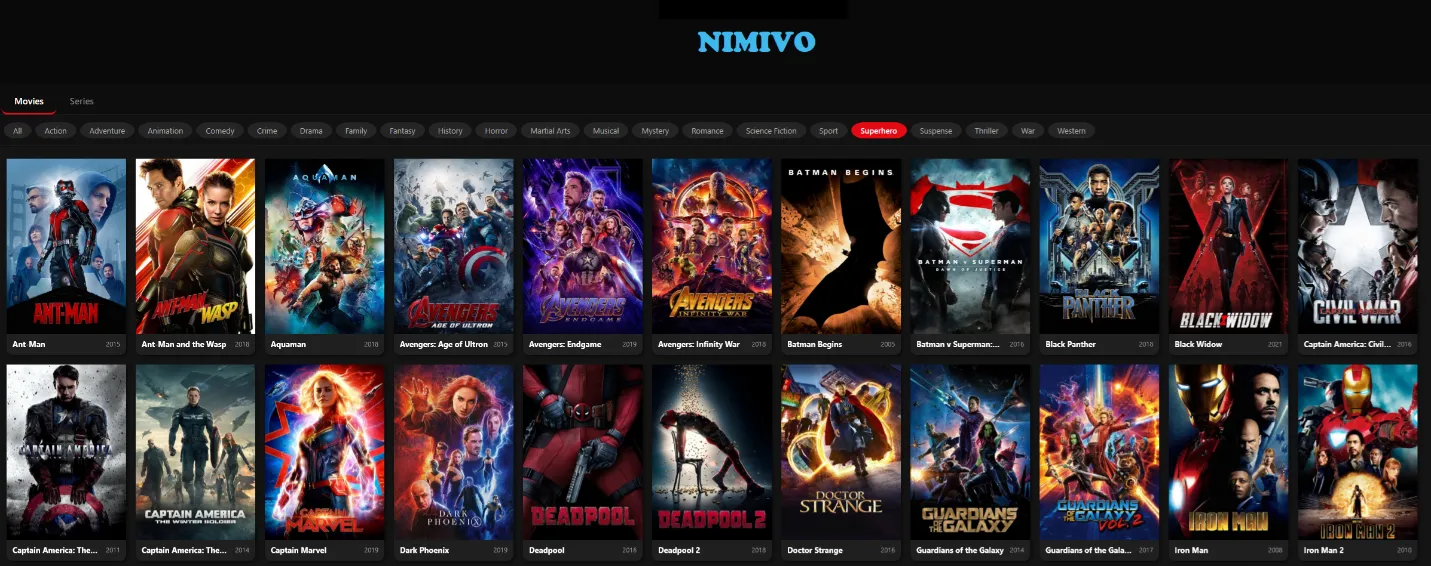
Mousing over a title will highlight it in red.

From here you can either directly play the video by clicking the white play button in the center or click on the title to open the details screen.
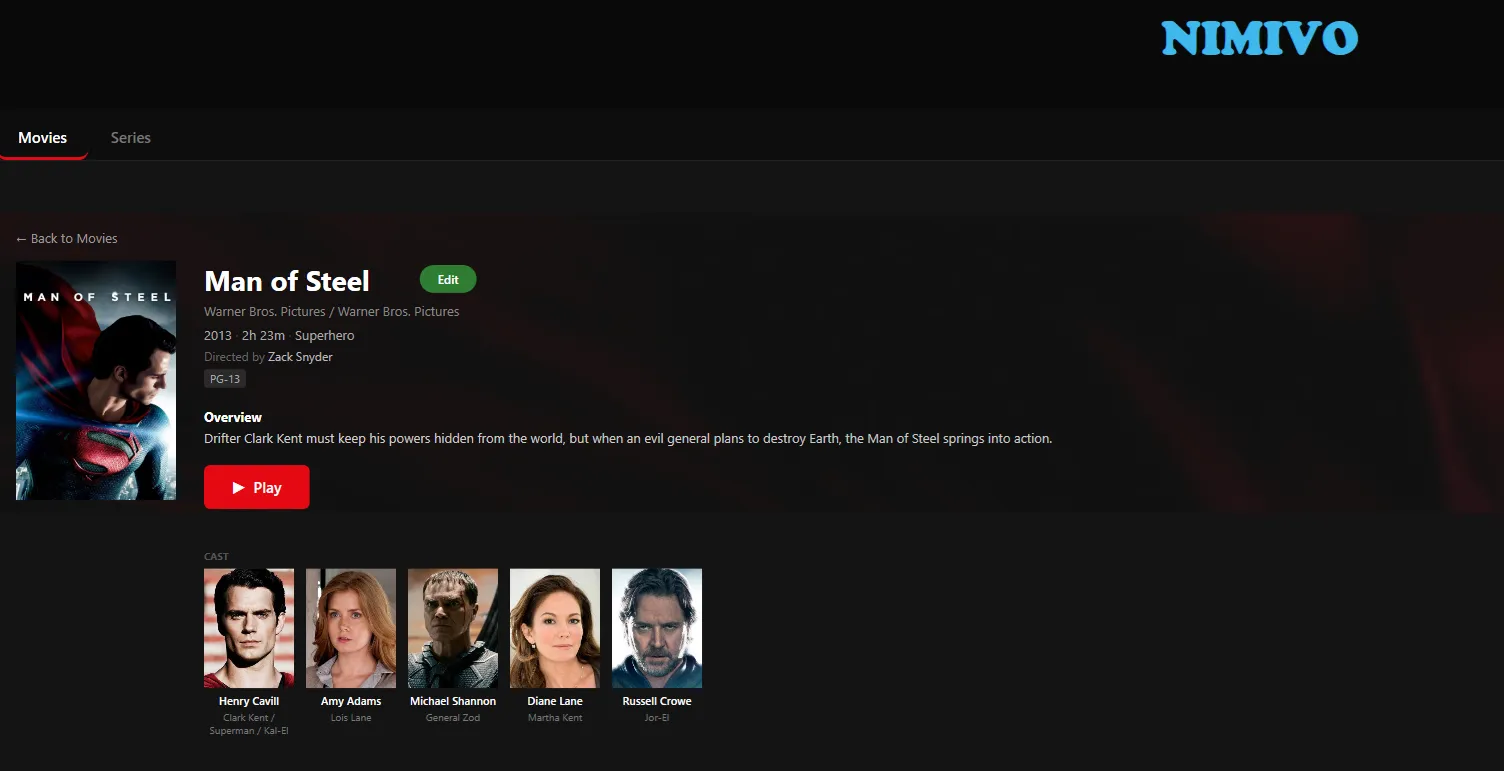
This screen will show you details about the title, including release year, rating, runtime, overview, and the top five characters.
You can click the Edit button to edit the Title, Overview, and Genres. To edit the genres, see the Editing Genres in Nimivo guide.
Viewing TV Shows
Viewing TV shows, referred to as Series in Nimivo, works much the same as viewing movies with the exception that TV shows have seasons and episodes. The details screen of a TV show displays seasons in addition to the information related to the show.
If your library is missing any seasons, or any episodes for a season, then an episode count will display below the season. It is possible that episodes which are two-part episodes will be combined into one media file. When this occurs, the episode count might incorrectly show ‘9/10’ even though all episodes are present.
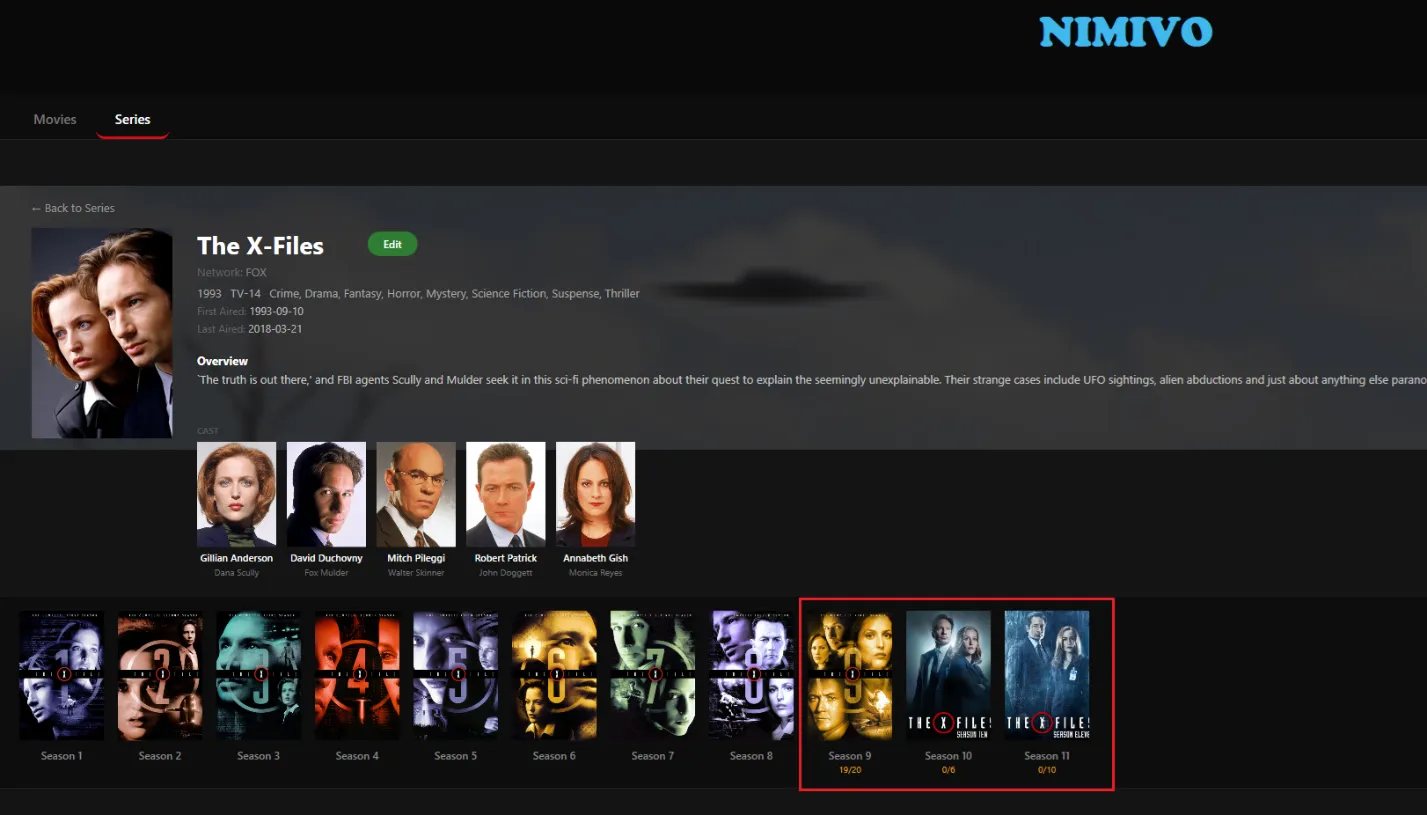
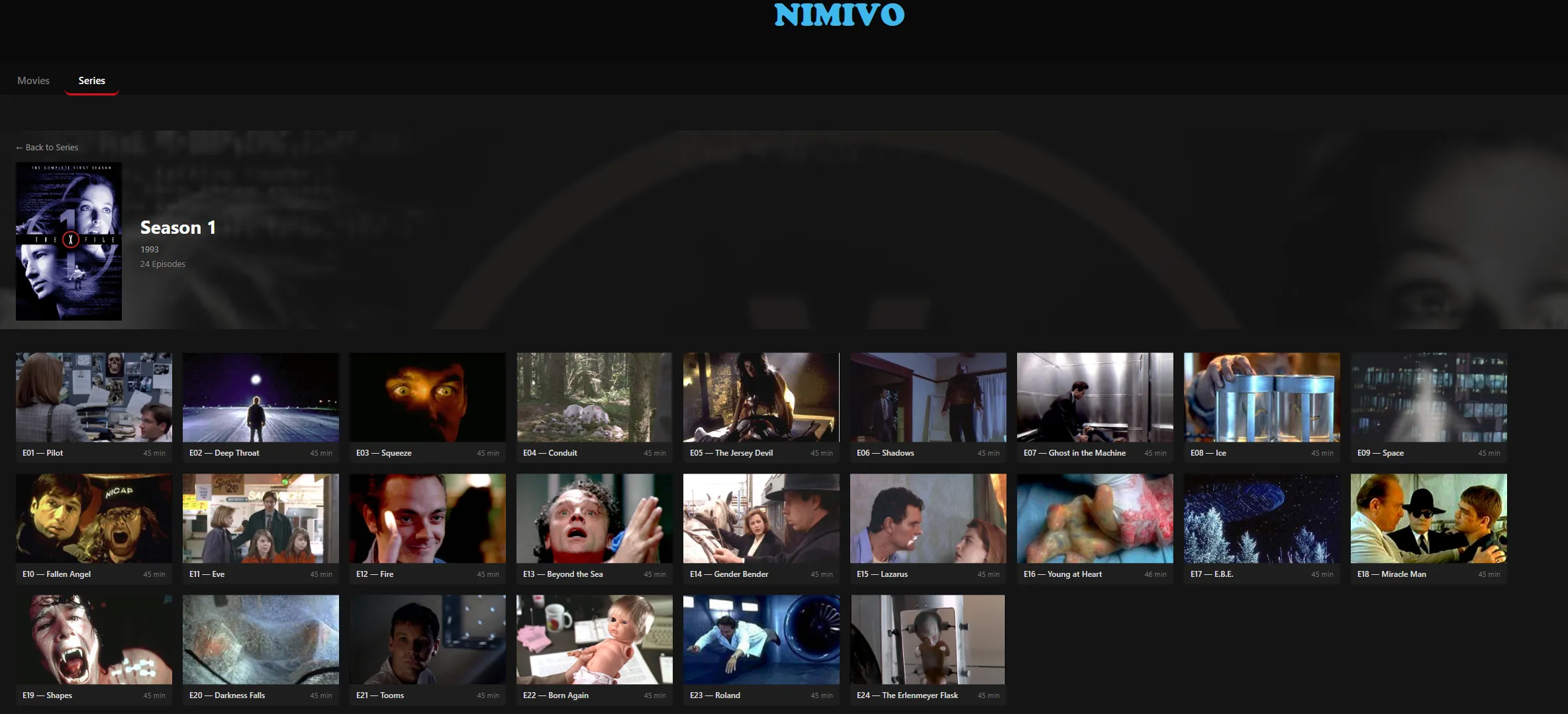
Clicking on a season will open the Season Detail screen showing the season number, year, and episode count, along with a screen capture of each episode. Click an episode to play it.
Playback Controls
Moving the mouse during video playback will display the playback controls below the video.

From left to right are the Play/Pause button, Skip Backward 10 Seconds, Skip Forward 10 Seconds, Minimize button, and Close button.
Clicking the Minimize button will minimize Nimivo to the task bar. Video playback will continue while Nimivo is minimized unless Pause has been selected.
Above the buttons is the video timeline. The thick vertical line shows the current position of the timeline. You can hold the left mouse button and drag forward or backward to make larger changes than the 10 second forward or backward buttons.
Resuming Playback After Close
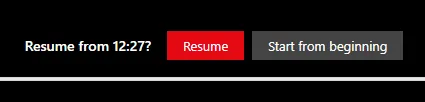
If you close a video before it is 95% complete or greater and later view the same title, then Nimivo allows you to resume viewing from the last timeline position or start the video over from the beginning.
Contacting Support
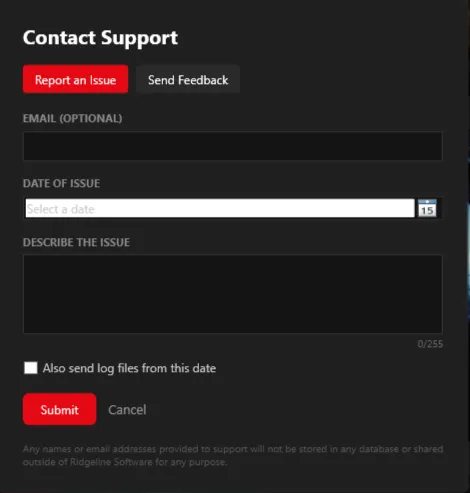
If you encounter an error or issue, you can select the ‘?’ icon in the upper right area of Nimivo to contact our support team.
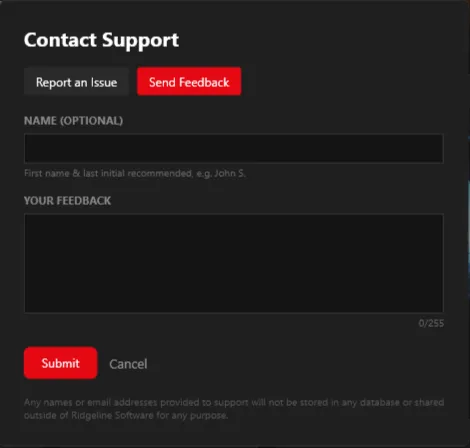
We also encourage you to provide feedback on your experience using Nimivo.
Thank you for trying Nimivo. We are dedicated to making Nimivo the premier solution for streaming your media library.